3D for e-commerce7 min read
Making a 3D product viewer accessible: keyboard, screen readers and reduced motion
An accessible 3D viewer keeps your product page usable for every customer and in line with WCAG. What that takes, and what CharpstAR's viewer already does.
By CharpstAR · 4 Oct 2023 · Updated 19 Oct 2026

Keep your product page usable for every customer when you add a 3D viewer, and keep it in line with WCAG.
Imagine a customer who uses a screen reader shopping for a dining chair. The page reaches the 3D viewer and all they hear is "button". They cannot tell the size or the finish, so they leave the page and buy the chair somewhere else.
A 3D viewer added to a page with no written description and no keyboard control fails the accessibility rules a shop is held to. Each failure loses you that customer, and it shows up in your next accessibility audit. In the EU, the European Accessibility Act has applied to e-commerce since 28 June 2025. The viewer CharpstAR puts on your page meets the four criteria below as delivered: it has a written description, works from the keyboard, lets focus leave, and stops its motion. Your team does not have to build any of that.
What Is an Accessible 3D Viewer?
An accessible 3D product viewer gives every customer the same product information, whether they use a mouse, a keyboard, a screen reader or a phone on a slow connection.
On a product page with an accessible viewer, customers can:
- Hear a description of the product's shape, size, materials and finish through a screen reader
- Tab to the viewer, turn the model with the arrow keys and tab out again
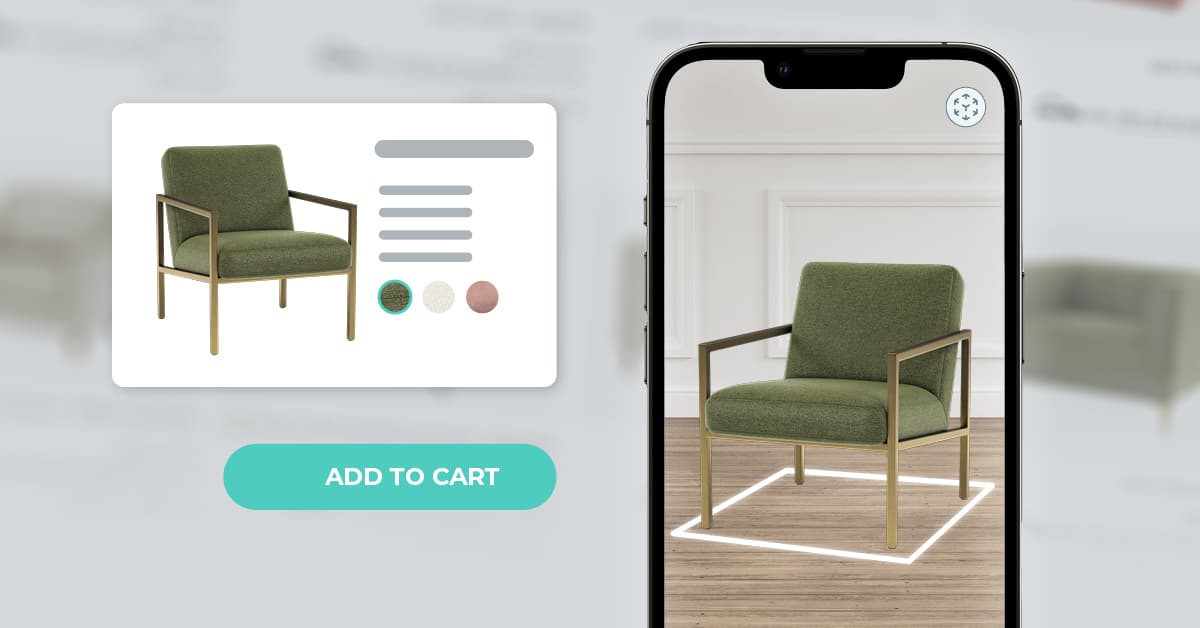
- Find an AR button that is announced with a meaningful label
- Stop the motion, or never see it if their device is set to reduce motion
- See a picture of the product where the viewer sits while the model loads
- Read the dimensions, materials and colours in the page text, without the viewer
The rules come from the Web Content Accessibility Guidelines (WCAG). The criteria that apply to a 3D viewer are a text alternative (1.1.1), keyboard operation (2.1.1), no keyboard trap (2.1.2) and a way to stop moving content (2.2.2), all Level A.
Why Use an Accessible 3D Viewer for E-commerce?
Meet the Accessibility Rules Your Shop Is Held To
An online shop selling in the EU has had to meet the European Accessibility Act since June 2025. A viewer that fails the Level A criteria is an audit finding. A viewer that passes keeps 3D off the list of things your team has to fix.
Keep Every Customer on the Page
A customer who uses a screen reader, a keyboard or a device set to reduce motion has the same buying intent as anyone else. When the viewer works for them, the same product page sells to them, and the sale stays in your shop.
Give Every Shopper a Better Description
The written description a screen reader needs covers the size, the frame, the finish and the materials, and every customer can use it. The viewer carries a written description of the model; we draft it from the product data you send and you approve it.
Keep the Size on the Page for Everyone
AR needs a camera and a phone held up in a room, so the size has to be available another way. The viewer shows the dimensions as text on the model, and your product page keeps them in its own text, so every customer can check the fit before they order.
Use Case: A Dining Chair Page
What the Customer Gets
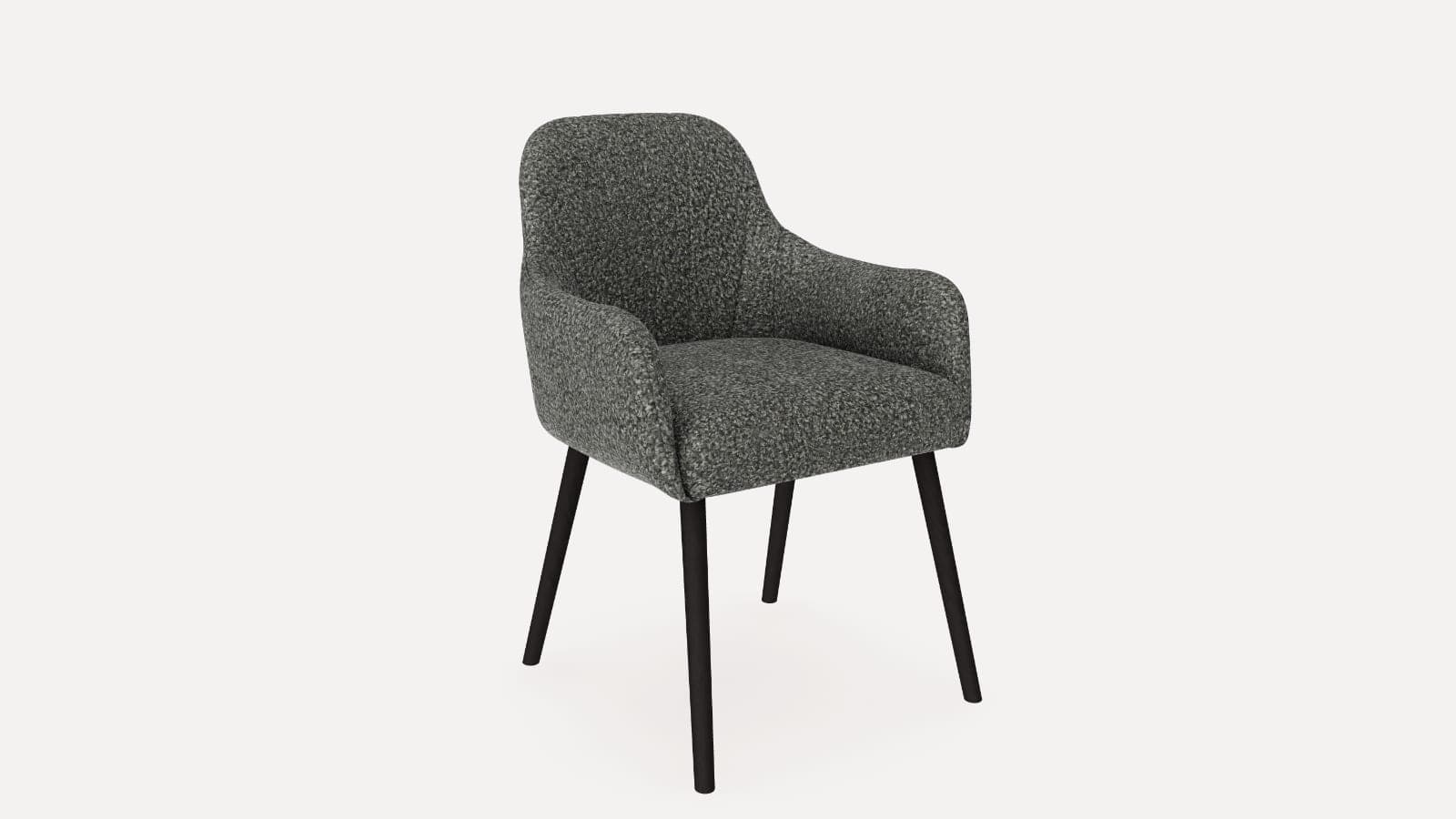
A screen reader reads a description of the chair of this kind: "Oak dining chair, 45 cm wide, 52 cm deep, 82 cm tall, seat height 46 cm. Solid oak frame with a natural matt finish, four tapered legs, curved backrest in three vertical slats, woven paper cord seat in light grey." A keyboard user tabs to the viewer, turns the chair with the arrow keys and tabs on to the next element. The AR button is labelled with the product name, so a screen reader announces what it opens.
The chair does not spin on its own, and when a device is set to reduce motion the viewer honours it through the prefers-reduced-motion setting, which follows the reduce-motion setting on every phone and computer. Before the model loads, and on a device without 3D support, a picture of the chair with its own text alternative takes the viewer's place.
What You Get for Each Product
| What you receive | Detail |
|---|---|
| The viewer | One snippet for your product page template |
| The model | A 3D file for the viewer and for AR, hosted on our CDN |
| The description | A written description drafted from your product data, which you approve |
| The AR button | A labelled button that screen readers announce; it opens Scene Viewer on Android and AR Quick Look on iOS |
Brands That Work With CharpstAR
CharpstAR built the modular sofa configurator at Sweef, the Build Your Stove configurator at Contura and the 3D and AR product pages at MELIMELI.
How to Add an Accessible 3D Viewer to Your Website
Your templates and your checkout stay as they are. The viewer goes on your existing product pages.
Step 1: Pick the Products
Choose the products to start with and send us their page links, with the dimensions and the materials, and CAD files or close photos where you have them.
Step 2: Receive the Plan and the Price
Within a working day you hear from us what your range needs and what it costs per model.
Step 3: We Build the Models and Write the Descriptions
We build each model and draft its written description from the product data you sent. You approve the text, and both are ready to check on your own page.
Step 4: Check the Page With Your Own Team
Open the page with a screen reader and a keyboard, run the checks listed below the KPI table, and put the viewer live. It is one snippet, whatever platform your shop runs on. The dimensions, materials and colours stay in your page text as well as in the model.
How to Measure the Effect of an Accessible Viewer
| KPI | What to measure |
|---|---|
| Accessibility audit findings | Whether the product pages with the viewer add any new WCAG failures |
| Conversion rate | Whether product pages with the viewer sell to more of their visitors |
| Add-to-cart rate | Whether customers who use the viewer add to cart more often |
| Return rate | Whether fewer orders come back for the wrong size or finish |
| Support questions | Whether there are fewer questions about dimensions and materials |
Measure the same products before the viewer goes on and again after.
The Checks Your Accessibility Tester Can Run
| Check | How | Criterion |
|---|---|---|
| Description is specific | Read the text alternative aloud | 1.1.1 |
| Keyboard rotate | Tab to the viewer and press the arrow keys | 2.1.1 |
| Keyboard escape | Press Tab again and confirm that focus leaves | 2.1.2 |
| Motion stoppable | Check that reduce motion turns the spin off | 2.2.2 |
| AR button named | Listen to what the screen reader announces | 1.1.1 |
| Works without 3D | Disable WebGL and use the page | General |
| Dimensions in text | Read the sizes without the viewer | General |
The viewer is built on Google's model-viewer component, for a tester who wants the source.
How Much Does an Accessible 3D Viewer Cost?
The viewer and the model come as one subscription, priced per model. On the Value plan that is 20 dollars per model per month over 24 months, for a minimum of 100 models, with hosting, updates and implementation in the price. The Basic plan, from 10 dollars per SKU, is listed with the full comparison on prices.
Is an Accessible 3D Viewer Right for Your Business?
An accessible viewer is the right choice for any shop that adds 3D, and it matters most if:
- Your shop sells to the public in the EU, where the European Accessibility Act applies
- Your products are chosen on size, material and finish
- Customers write to you about dimensions before they order
- Large products make returns expensive
Try It on One of Your Own Products
Pick one product and we deliver it in 3D for free, with a written description for you to approve, so your own team can run the checks above on your page. Send us a product. Everything we build for a full range is described on solutions, with the plans on prices.