Guides6 min read
What happens when you tap View in AR, step by step on iPhone and Android
A shopper's guide to using AR on a product page: what each tap does on iPhone and Android, how to place an item accurately, and what to do when it goes wrong.
By CharpstAR · 4 Oct 2023 · Updated 22 Sept 2026
Part of 3D models for e-commerce: the complete guide

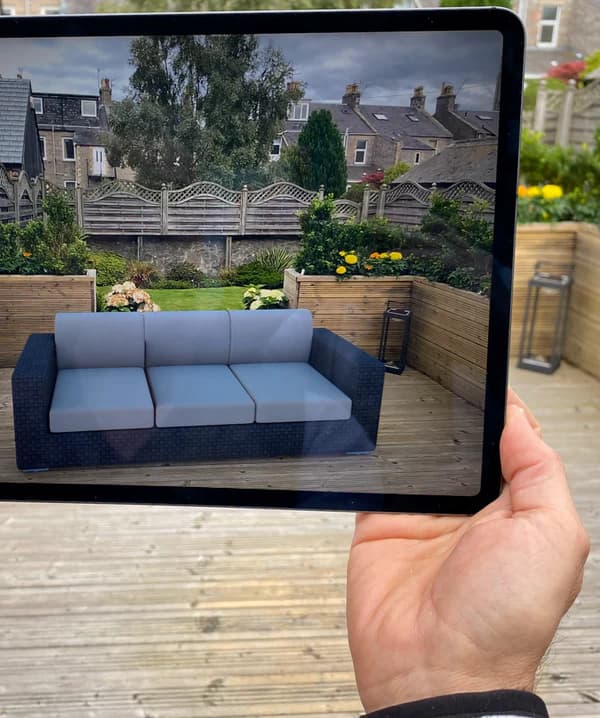
You are looking at a sofa on your phone and there is a button that says "View in AR" or "See it in your room". This is what happens when you tap it, on both kinds of phone, and what to do when something does not work.
No app is involved. Nothing gets installed. The feature is built into your phone's operating system, and the shop is simply handing your phone a 3D file to display.
Before you tap: use the 3D viewer
Most product pages that have an AR button also have a 3D model you can spin with your finger, right there in the page. Do that first. It costs nothing, it works on a laptop as well as a phone, and it answers the questions that photos leave open: what the back looks like, how thick the frame is, where the cable comes out.
Many viewers also let you turn on dimension lines, which draw the width, depth and height across the object. For a lot of purchases that is the whole answer, and you never need the camera at all.

Finish
Log store
Floor plate
Drag to rotate, pinch to zoom, change the finish. This is the part that works on any device, before AR is involved at all.
On an iPhone or iPad
Apple's version is called AR Quick Look. It has been built into iOS since iOS 12, and it works in Safari as well as in Messages, Mail, News and Notes.
Step one. Tap the AR button. The page hands Safari a USDZ file, which is Apple's 3D format.
Step two. A full-screen view opens showing the product on a plain background, with two tabs at the top: "Object" and "AR". You start in Object. This is a 3D preview you can spin.
Step three. Tap "AR". If this is your first time, iOS asks for permission to use the camera. Allow it.
Step four. Move the phone slowly. It is looking for a flat surface. Point it at the floor for furniture, or at a wall for art and mirrors, and pan slowly for a few seconds.
Step five. The product appears at real size. Drag with one finger to move it along the floor. Twist with two fingers to rotate it. On most models you cannot resize it, and that is deliberate: the point is real scale.
Step six. Walk around it. This is the part people skip and it is the most useful part. Stand where you would sit, look at it from the doorway, check whether you can still open the drawer behind it.
You can take a photo with the shutter button and send it to whoever else has an opinion about the sofa.
On an Android phone
Google's version is called Scene Viewer. It needs an ARCore supported device running Android 7.0 or later, with an up to date version of Google Play Services for AR and an up to date Google app.
Step one. Tap the AR button. The browser hands the phone a glTF or GLB file.
Step two. Scene Viewer opens, usually in a 3D preview, with a toggle to the AR camera view.
Step three. Switch to AR and grant camera permission. If Google Play Services for AR is missing or out of date, Android will offer to install or update it. That is a normal Play Store download, not a separate app you have to find.
Step four. Move the phone slowly to let it detect the floor. A small grid or set of dots usually appears once it has found the surface.
Step five. The product appears at real size. One finger drags it, two fingers rotate it.
Step six. Same as iPhone: walk around it, view it from the door, take a photo.
How to get an accurate placement
The biggest cause of a bad AR experience is rushing the surface detection. A few habits that fix it:
- Give the phone light. AR uses the camera to understand the room. A dim room makes it guess badly.
- Pan slowly across the floor for five seconds. Sweeping the phone quickly gives it nothing to work with.
- Avoid plain, featureless surfaces. A uniform pale floor or a glossy one is hard to read. A rug or a floorboard pattern helps.
- Stand back. Place the item from two or three metres away rather than standing over it.
- Clear the actual space. Placing a sofa where your current sofa is makes it very hard to judge.
- Check it from the doorway. Scale judgement from close up is unreliable, and the doorway is how you see the room every day.
What can go wrong, and what to do
| Problem | Likely cause | What to do |
|---|---|---|
| The AR button does nothing | The file failed to load, or you are on a browser that does not hand off properly | Open the page in Safari on iPhone or Chrome on Android |
| No AR button at all | You are on a laptop or a device without AR support | Use the 3D viewer instead, it answers most questions |
| "Move your device to start" never goes away | Too dark, surface too plain, or moving too fast | Turn on a light, aim at a patterned floor, pan slowly |
| The product floats or sinks into the floor | The phone locked onto the wrong surface | Tap elsewhere on the floor, or back out and start again |
| It looks much too big or too small | It is almost certainly correct; near-field AR reads large | Step back and view from the doorway, then check the dimension table |
| Android asks to install something | Google Play Services for AR needs updating | Allow it; it is a Google system component, not a third-party app |
| It is slow or stutters | Large model, older phone, or weak connection | Wait for the initial load on wifi, then try again |
The one thing to be sceptical about
AR gets size right and colour approximately right. The camera view adapts to your room lighting, and the model was rendered under a studio light setup. A grey that looks warm on your screen at 9 pm may not be the same grey in daylight.
So use AR for scale, proportion, clearance and how the shape sits in the room. For colour, order a fabric sample if the shop offers one, and read the return policy before committing. The National Retail Federation and Appriss Retail put United States returns at 743 billion dollars in 2023, 14.5 percent of sales and 17.6 percent online, and a good chunk of that is colour, not size. AR helps with the size half.
Why shops bother
From the retailer's side, this exists because it works. Shopify reported in 2020 that interactions with products carrying 3D or AR content converted 94 percent more often than the same kind of products without, and published Rebecca Minkoff results showing a 65 percent lift in purchases on AR-enabled pages.
From your side the reason is simpler: it is the fastest way to find out the thing is 20 cm too wide before it arrives on a lorry.
We build these models for furniture, stove and home brands, so if a page you used felt smooth or felt broken, that was somebody's implementation choice. The good ones put the 3D viewer in the main image gallery, keep the model small so it loads fast, and add dimension lines so you do not need the camera at all. Sweef, Contura and MELIMELI are examples done properly.
If you run a shop and want to see what your own customers would get, we will build a 3D model of one of your products for free. Send us one product and the model is yours to keep. What we do beyond that is on solutions and prices.
Sources
- Apple, AR Quick Look.
- Google, Scene Viewer documentation.
- Shopify, merchant data on 3D and AR content, September 2020.
- Shopify, 3D e-commerce.
- National Retail Federation and Appriss Retail, 2023 Consumer Returns in the Retail Industry.