3D for e-commerce6 min read
Making a 3D product viewer accessible: keyboard, screen readers and reduced motion
What WCAG actually requires from a 3D viewer and AR button, which model-viewer attributes help, and the parts of AR that cannot be made accessible.
By CharpstAR · 4 Oct 2023 · Updated 22 Sept 2026

A 3D product viewer is a canvas that responds to dragging. That is a difficult starting point for accessibility, and a lot of implementations simply ignore the problem: no text alternative, no keyboard control, an auto-rotating model that will not stop, and an AR button that a screen reader announces as "button".
This article is the technical version. What the relevant WCAG success criteria require, what you can do about each one, and which parts of AR genuinely cannot be made accessible so that you plan a fallback instead of pretending.
The criteria that apply
Four of them do most of the work.
1.1.1 Non-text Content (Level A). All non-text content presented to the user has a text alternative that serves the equivalent purpose. A 3D model is non-text content. It needs a description.
2.1.1 Keyboard (Level A). All functionality of the content is operable through a keyboard interface. If a sighted mouse user can rotate the model, a keyboard user must be able to rotate it too.
2.1.2 No Keyboard Trap (Level A). If focus can be moved into a component with the keyboard, it must be possible to move focus away again using only the keyboard. Canvas-based viewers that capture arrow keys are the classic offender.
2.2.2 Pause, Stop, Hide (Level A). Automatically moving content that starts by itself and runs for more than a few seconds needs a mechanism to pause or stop it. An auto-rotating product model is exactly this.
Worth knowing about too: 2.3.3 Animation from Interactions (Level AA), which concerns motion animation triggered by interaction, and 2.5.4 Motion Actuation (Level A), which concerns functionality operated by device motion.
Text alternatives that are actually useful
The `alt` attribute on `
"3D model of chair" is compliant and useless. The equivalent purpose of a 3D viewer is to convey shape, proportion, material and scale. So write that:
"Oak dining chair, 45 cm wide, 52 cm deep, 82 cm tall, seat height 46 cm. Solid oak frame with a natural matt finish, four tapered legs, curved backrest in three vertical slats, woven paper cord seat in light grey."
That paragraph gives a screen reader user the information a sighted user gets from spinning the model. It takes two minutes per product to write and it is the single highest-value accessibility action on the list. If you generate it from your product data, fine, as long as somebody checks that the result reads like a description and not like a spec dump.
Keyboard control
`camera-controls` in model-viewer enables controls via mouse and touch, and the component supports keyboard interaction when the element is focusable. The things to verify yourself, because they are easy to get wrong in a custom wrapper:
- The viewer receives focus in the normal tab order and shows a visible focus ring.
- Arrow keys rotate the model once it has focus, and do not scroll the page at the same time.
- Tab moves focus out again. This is criterion 2.1.2 and it is the one that fails most often.
- Zoom has a keyboard path, or zoom is disabled with `disable-zoom` so nothing is keyboard-only inaccessible.
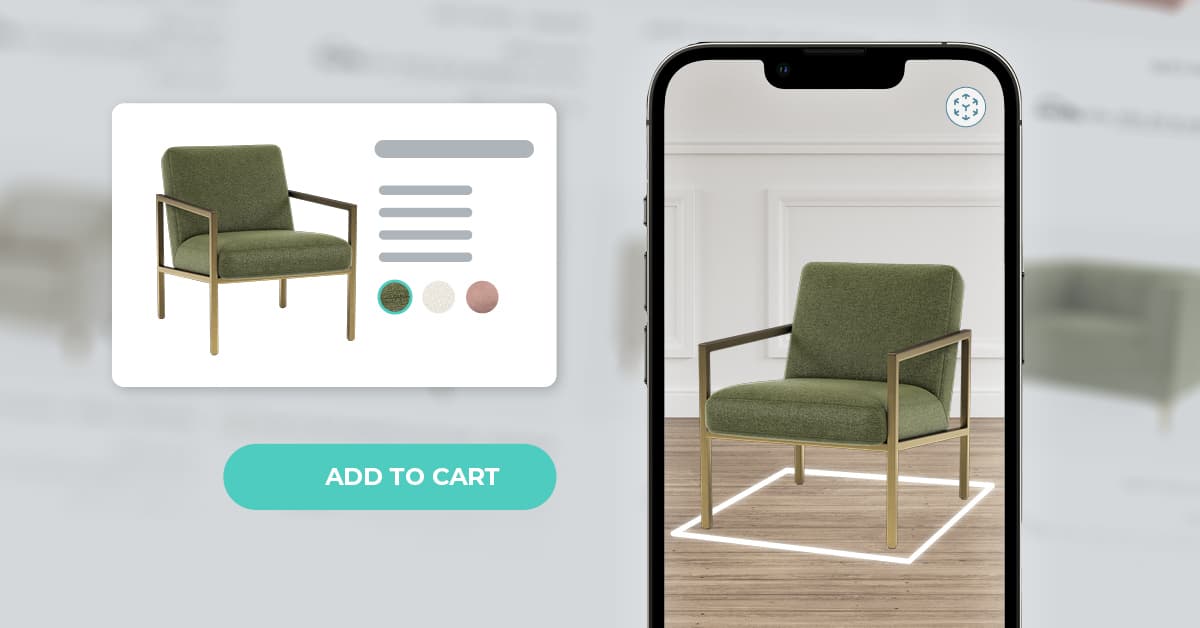
- The AR button is a real button element with a label like "View this chair in your room", not an icon with no accessible name.
The `touch-action` attribute matters here too. Its default of `pan-y` lets touch users scroll the page vertically past the viewer, which prevents the model from trapping the scroll on mobile. That is the touch equivalent of a keyboard trap and it annoys everybody, not only assistive technology users.
Motion
Auto-rotation is the default setting people reach for because it signals that the model is interactive. It also violates 2.2.2 if it runs for more than five seconds with no way to stop it, and it is uncomfortable for people with vestibular conditions.
The fix is straightforward. Respect the operating system setting through the `prefers-reduced-motion` media feature, which detects if a user has enabled a setting on their device to minimise non-essential motion. Its values are `no-preference` and `reduce`, and it maps to the reduce motion settings in Windows, macOS, iOS, Android and Linux.
```css
@media (prefers-reduced-motion: reduce) {
model-viewer { --auto-rotate: none; }
}
```
In practice: do not set `auto-rotate` when the user has asked for reduced motion, and give everyone a visible pause control if you do use it. The `interaction-prompt` attribute, which controls the visual and auditory prompt that appears after a threshold, can be disabled too if the prompt animation is itself a problem.
Loading and fallbacks
The `poster` attribute displays an image instead of the model, useful for showing the user something before a model is loaded and ready to render. Pair it with `loading`, which takes `auto`, `lazy` or `eager`, and with `reveal`, which controls when the model is shown.
For accessibility this matters because the poster is the fallback state. On a slow connection, an old device, or a browser where WebGL is unavailable, the poster image with a proper `alt` on the surrounding content is what the user gets. Make sure that state is a usable product page rather than a grey box, and make sure the page never depends on the 3D viewer to convey information that appears nowhere else. Dimensions, materials and colours belong in the page text as well as in the model.
The part you cannot fix
AR placement requires a camera, a device with motion tracking, and the physical ability to hold a phone and move it around a room. There is no accessible equivalent of that experience, and no amount of markup changes it.
So treat AR as an enhancement, never as the only route to a piece of information. Everything AR communicates, which is essentially real-world size in context, must also be available as written dimensions, as a scale drawing or as a photograph of the product next to a known reference object. If a shopper can only learn that the sofa is too wide by placing it in AR, the page has failed for a large group of people.
A short test you can run today
| Check | How | Criterion |
|---|---|---|
| Description exists and is specific | Read the `alt` text aloud. Could you picture the product | 1.1.1 |
| Keyboard rotate | Tab to the viewer, press arrow keys | 2.1.1 |
| Keyboard escape | Press Tab again. Does focus leave | 2.1.2 |
| Motion stoppable | Is there a pause, and does reduce motion turn it off | 2.2.2 |
| AR button named | Screen reader announces a meaningful label | 1.1.1 |
| No WebGL fallback | Disable WebGL. Is the page still usable | General |
| Dimensions in text | Are sizes readable without the 3D viewer | General |
Seven checks, about fifteen minutes per template. Run them once and you will be ahead of most e-commerce sites carrying 3D.
We build models and viewers for furniture and home brands and we ship the descriptions with them, because a model without a text alternative is an unfinished model. Sweef, Contura and MELIMELI all run this setup.
If you want to see the standard we work to, we will build one model for your catalogue for free, description included. Send us a product, or read solutions and prices.
Sources
- W3C, WCAG 2.2 quick reference, for criteria 1.1.1, 2.1.1, 2.1.2, 2.2.2, 2.3.3 and 2.5.4.
- Google, model-viewer documentation, for the `alt`, `poster`, `loading`, `reveal`, `camera-controls`, `auto-rotate`, `disable-zoom`, `interaction-prompt` and `touch-action` attributes.
- MDN, prefers-reduced-motion.
- Google, Scene Viewer developer documentation.
- Apple, AR Quick Look.